Taking an Order
The full reference for every field on the order form.
Product search & cart
The left panel is your product search. Type any part of:
- SKU — e.g.
100001 - Product name — e.g.
garden fork - Barcode — scan or type the EAN/UPC
Results show live retail prices and stock levels pulled straight from Linnworks's Stock API. Add items to the cart by clicking + Add or using the auto-add behaviour described in Auto-actions.
In the cart
- Quantity — adjust with ± or type a number directly
- Unit £ — overrides the Linnworks retail price for this order only (or for this customer permanently if you have price memory)
- Remove — the × on the right takes the line out
Customer lookup
Type a name or company into the Customer field. We search the last 3 years of your processed orders for matches. Pick one and:
- Their most-recent shipping address auto-fills the Delivery Address block (you can edit any field)
- The line-by-line price memory kicks in — items they've bought before auto-fill at their last-charged price
If you can't find them, just type into the address block manually. They'll show up in lookup once their first order is processed (Linnworks indexes new orders 12–24 hours after they're processed).
Reference fields
| Field | Stored on Linnworks as | What it's for |
|---|---|---|
| Reference No | ReferenceNum | Your internal order reference |
| PO Number | ExternalReference | The customer's purchase order number |
| Sub Source | SubSource (Source is always DIRECT) | Free-text tag for where the order came from (counter, phone, rep, event…) |
| Notes | Order note (internal) | Free-text notes visible on the order in Linnworks |
A "Placed by <email> via Trade Order POS" internal note is also written automatically, plus an Extended Property PlacedBy so you can filter processed-order lists by team member.
Money fields
Covered in detail under VAT, Discount & Delivery, but in brief:
- Discount % — applies the same percentage to every line
- Delivery £ — net delivery charge, posted as a manual shipping adjustment
- VAT — toggle on for VAT at your configured rate (20% by default; change it at Settings → Locale) with an Ex/Inc mode (cart and delivery have their own modes). Your VAT setup is remembered per login.
Location
The Location dropdown is the Linnworks fulfilment centre the order is created against. Each user can save their default via Settings → Default Location.
Submit
Click Submit Order →. The order is built in this order:
- CreateOrders (the order shell)
- AddOrderItem per line (with quantity, unit price, VAT, discount %)
- SetOrderCustomerInfo (delivery address)
- SetOrderShippingInfo (delivery charge, if any)
- SetExtendedProperties (PlacedBy)
- SetOrderNotes (internal "Placed by..." + your free-text notes)
- SetOrderGeneralInfo (Reference No, PO Number, Sub Source)
- (if Auto-process is on) Orders/ProcessOrder
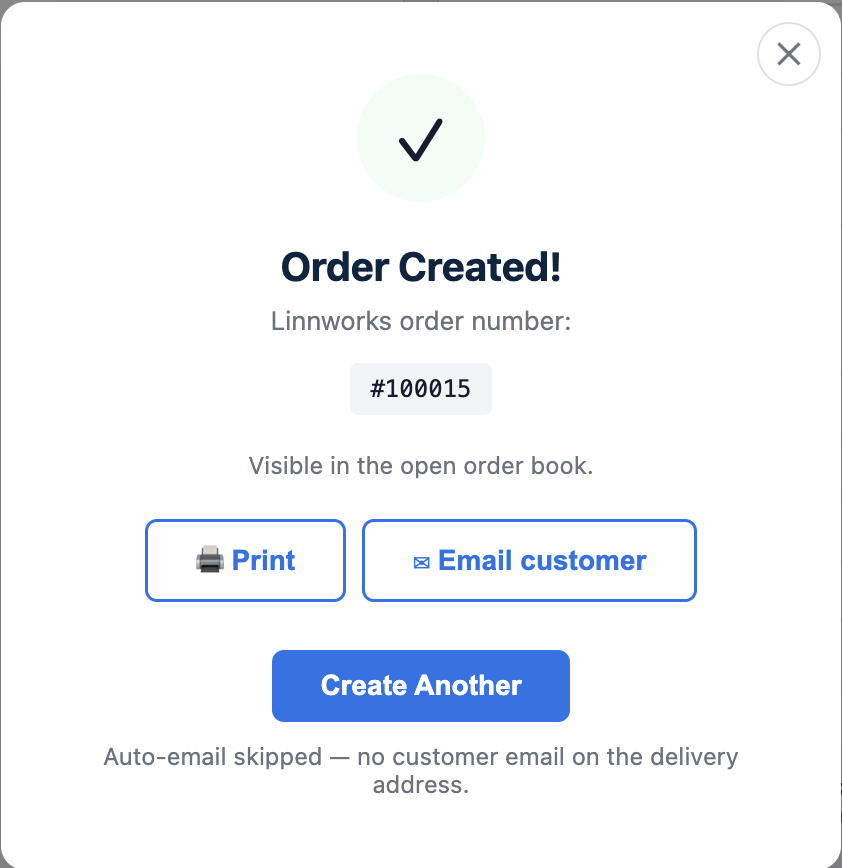
Any step from 3 onwards that fails is non-fatal — the order is still created and you see a warning toast telling you what couldn't be saved. The success modal stays open so you can email/print the confirmation or copy the Linnworks order ID.
After the success modal opens, the Auto-email flow runs (if enabled and there's a customer email) — see Auto-actions.