Auto-actions
Three persistent per-user toggles at the bottom of the order panel. They control what happens automatically when you submit an order. Each toggle is saved per user — staff and owners each have their own state.
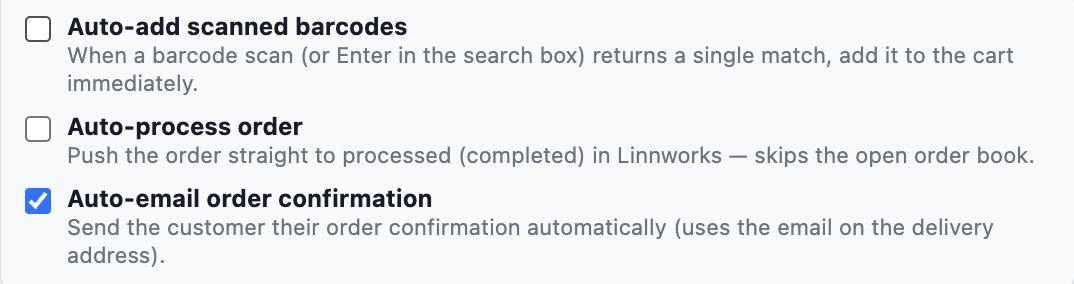
☑ Auto-add scanned barcodes (default ON)
When ON, pressing Enter in the search box (the universal end-of-scan keystroke from USB barcode scanners) auto-adds the result to the cart, but only if there's exactly one match.
- Barcode scan → scanner types the digits + Enter → 1 product matched → added to cart → search box clears → cursor stays in the search box ready for the next scan.
- Multiple matches → Enter is a no-op; pick one manually with the + Add button.
- Power-user bonus → if you type an exact SKU and hit Enter, it auto-adds too.
Turn it off if you prefer to always pick from the search results list manually.
☐ Auto-process order (default OFF)
When ON, after the order is built we call Linnworks's Orders/ProcessOrder and push the new order straight from open orders to processed.
Use it when:
- You're taking payment at the counter and the order ships immediately
- You want to skip the open-order picking step entirely
Leave it OFF when:
- You ship from a warehouse with a separate picking workflow
- You want the order in open orders for someone else to process
If Auto-process fails (rare — usually a permissions issue), the order is still safe in open orders. The success modal turns red and tells you where the order is.
☐ Auto-email order confirmation (default OFF)
When ON, the moment the order is submitted we email a branded PDF order confirmation to the email address on the Delivery Address block.
The email is sent fire-and-forget — the modal shows a green "✓ Auto-emailed confirmation to <email>" status when it goes through.
If the Delivery Address email field is blank, auto-email is silently skipped and the modal notes "Auto-email skipped — no customer email on the delivery address."
You can always email manually from the success modal with the ✉ Email customer button, whether the toggle is on or not.
Where the prefs are stored
Per user. Behind the scenes, POST /api/pos-preferences updates fields on the user record (posAutoBarcodeAdd, posAutoProcess, posAutoEmailConfirmation) the moment you toggle a switch. No "Save" button needed.
This is per-user, not per-account — so on a Team plan, every staff member keeps their own toggle state. Sensible defaults for staff are: barcode auto-add ON, the other two OFF.