Customers & Tiers
Tiers are your named price levels. Assigning a customer to a tier is what tells Trade Order POS which prices that customer should see.
Price tiers
B2B Price Tiers ships with three default tiers, ordered from lowest price to highest:
| Tier | Typical use |
|---|---|
| Enterprise | Your lowest price — biggest, most strategic accounts. |
| Wholesale | Bulk / distributor pricing between Enterprise and Trade. |
| Trade | Standard trade counter customers. |
There's no default RRP tier — Linnworks already holds each item's retail price, and rules can use it as a base. Want an RRP tier anyway? Add one in Settings.
Manage tiers in Settings
The defaults are only a starting point. In Settings you can freely:
- Set your currency — £, € or $. Prices are plain numbers in your Linnworks account's currency; this sets the symbol shown across the app's labels.
- Rename a tier (e.g. rename Enterprise to "Key Accounts")
- Recolour a tier so it's easy to spot in the grid
- Add a new tier
- Delete a tier you don't use
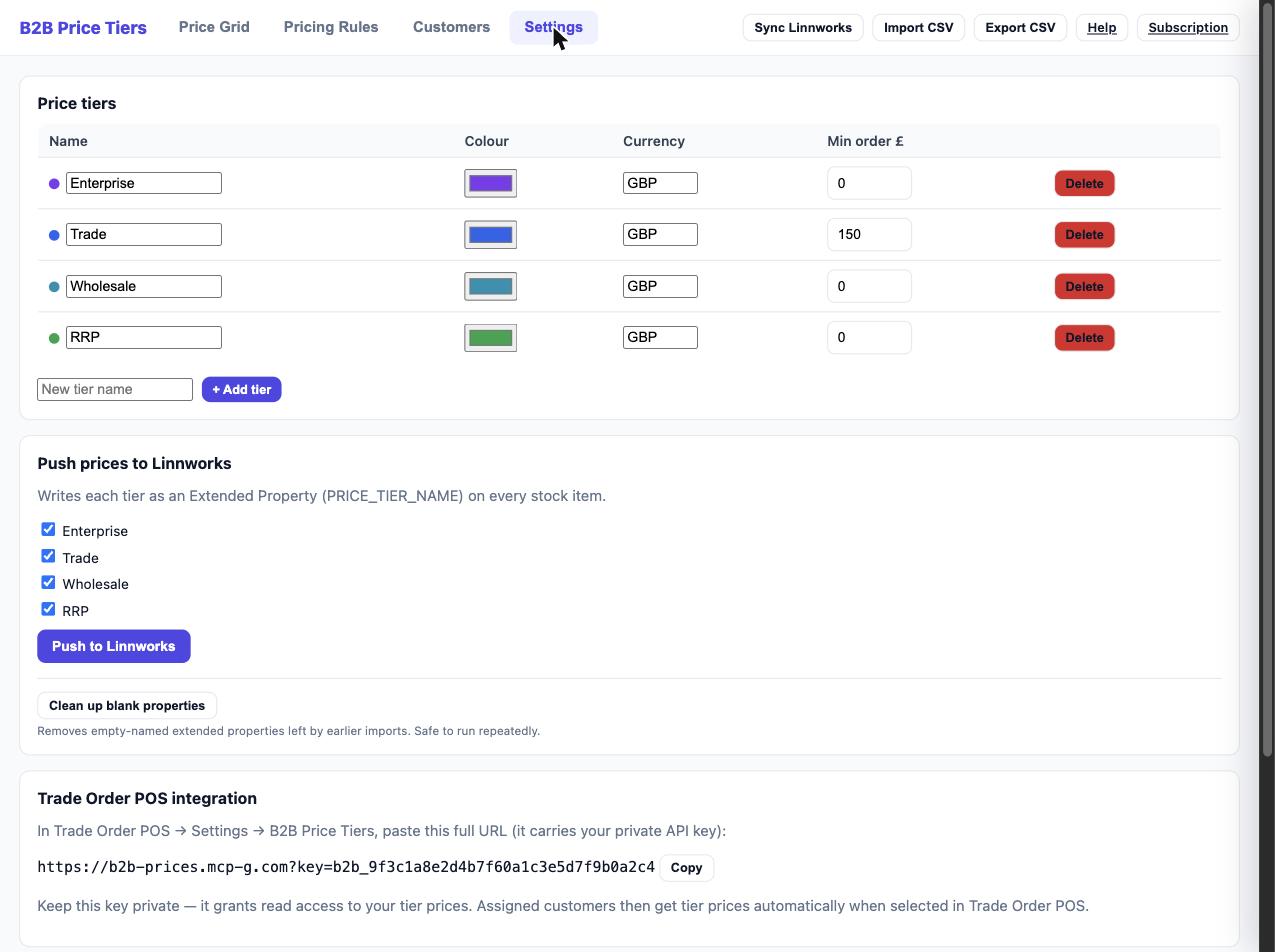
Tier names flow through everything. Tier names appear as columns in the Price Grid, as headers in your CSV export, and as the property name when you push to Linnworks. Pick names you're happy to see everywhere.
Assign customers to tiers
On the Customers screen you assign each customer to one tier.
-
Search your Linnworks customers
Find a customer by searching the customer records imported from Linnworks.
-
Assign a tier
Pick the tier that customer should be priced at. That's the price level they'll receive.
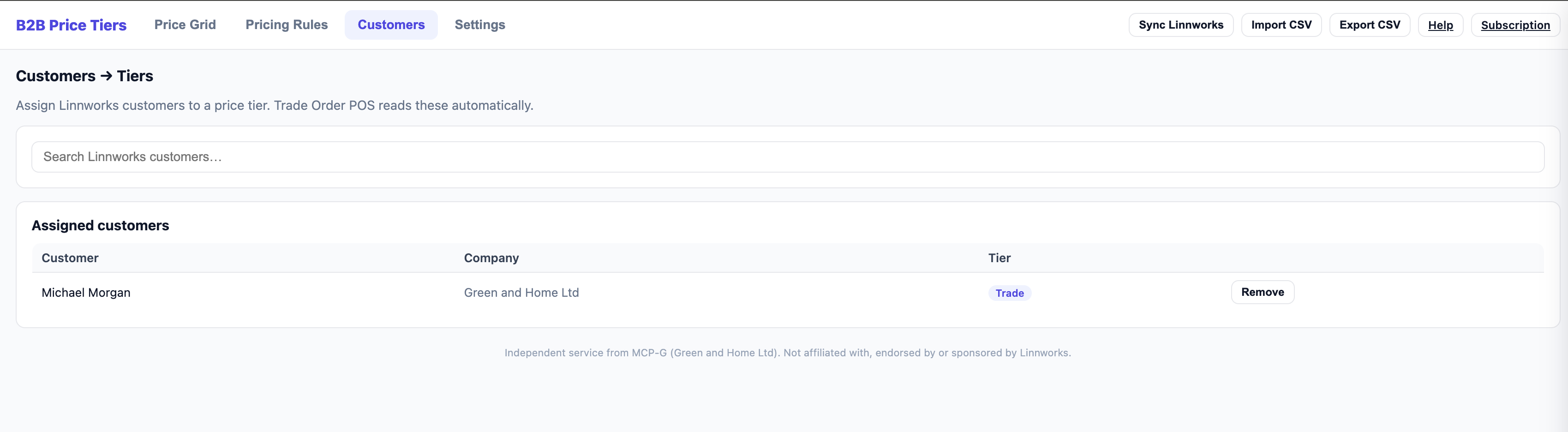
This assignment is the link to the till. When a member of staff picks a customer in Trade Order POS, POS looks up that customer's assigned tier here and applies the matching prices to the cart. See Trade Order POS Integration.
Assign tiers from Trade Order POS too
You don't have to set every customer's tier here. Trade Order POS has a tier dropdown on its customer panel, so staff can assign a tier while they take an order. That assignment is written back to B2B Price Tiers — so a customer tiered at the till is tiered here as well, and vice versa. Either app is a valid place to set it.
Minimum Order Value
Each tier can carry a Minimum Order Value — the smallest order total you want that tier's customers to place. Set it per tier in Settings (the Min order £ field, alongside the tier's name and colour).
The minimum is advisory, not a hard block. When a Trade Order POS order for a tier customer falls below that tier's minimum, POS shows a warn-don't-block prompt on submit — staff are told the order is under the minimum but can still proceed. See Trade Order POS Integration.