Advanced Repeat Order
Automate scheduled and repeat order creation inside Linnworks. Set it up once, let it run forever.
1. Overview
Advanced Repeat Order (ARO) is an embedded Linnworks app that lets you automatically create new orders on a recurring schedule, without manually re-keying them every week, fortnight, or month.
Once installed and configured, ARO turns repetitive order entry into a one-time setup task. It supports per-customer repeat schedules, multi-line orders, custom intervals, pause/resume, and email notifications to both the merchant and end customer.
Who benefits the most: B2B sellers with standing weekly/monthly orders, subscription-style consumer brands, and any merchant whose customers reorder the same items at predictable cadences.
2. Who it's for
ARO is built for Linnworks merchants who currently:
- Re-key the same orders for the same customers on a routine cadence (weekly, fortnightly, monthly, quarterly).
- Run informal subscription or standing-order arrangements that aren't worth setting up a full subscription platform for.
- Need a lightweight way to schedule future orders without a full ERP add-on.
- Want to give their customers predictable, automatic top-ups of consumable goods.
If you currently spend 30+ minutes a day re-creating the same orders, ARO will pay for itself in week one.
3. How it works
ARO runs entirely inside Linnworks — there's no separate dashboard to remember to log into. When you install ARO, it appears as a new screen within your Linnworks UI under Apps → Advanced Repeat Order [VERIFY exact menu path].
You create schedules. Each schedule defines:
- Customer — looked up from your Linnworks customer records or entered manually.
- One or more line items — by SKU, with quantities.
- Frequency — daily, weekly, fortnightly, monthly, quarterly, or a custom number of days.
- Start date and optional end date or occurrence count.
- Channel — which Linnworks channel/source the resulting orders are tagged with (e.g.
DIRECT,B2B). - Warehouse — which warehouse stock comes from [VERIFY: confirm warehouse override is configurable].
ARO then automatically creates a new order in Linnworks each time the schedule fires. The order appears in Open Orders just as if you'd created it manually, ready for picking, packing, and dispatch through your existing Linnworks workflows.
Technical note: ARO runs on Cloudflare's global edge network. Scheduled-order creation is handled by a serverless Worker that fires at the precise minute you set, regardless of whether your browser is open or your team is at lunch.
4. Installation
Installation takes about 60 seconds. You'll need:
- An active Linnworks merchant account.
- Permission to install applications on that account (account owner or admin).
-
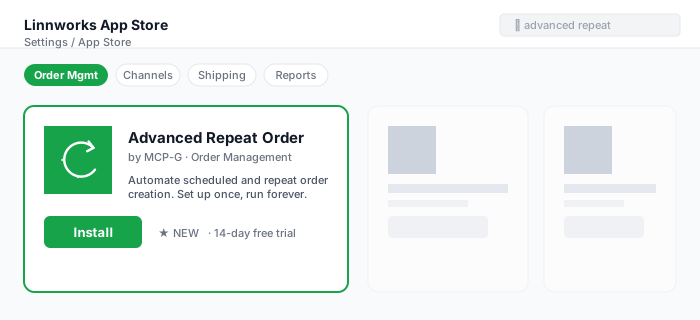
Open the Linnworks App Store
From inside Linnworks, go to Settings → App Store and search for Advanced Repeat Order.
Or go directly to the public app store page: apps.linnworks.net and find the listing.
-
Click Install
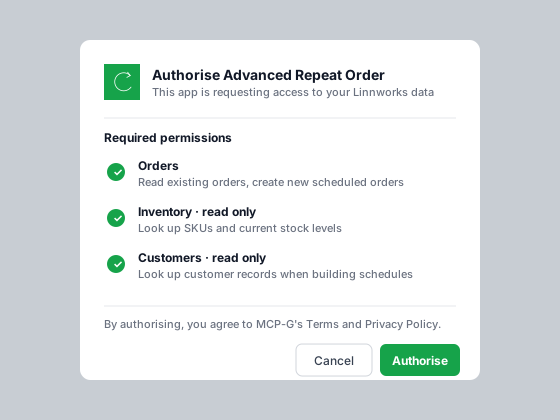
You'll be asked to authorise the app. ARO requests the following permissions:
- Orders (read and write) — to create the scheduled orders and read existing ones for the order picker.
- Inventory (read) — to look up SKUs and current stock levels.
- Customers (read) — to look up customer records when you build a schedule.
Click Authorise.
-
Open the app
Once installed, ARO appears under Apps → Advanced Repeat Order in your Linnworks left-hand menu [VERIFY exact location]. Click it.
-
Sign in / start trial
The first time you open ARO, you'll be prompted to start your 14-day free trial. No card details required for the trial.
If you've already started a trial elsewhere, you'll be prompted to add billing details to continue once it expires.
-
You're in
You'll land on the schedules dashboard. Empty on first install — let's create your first schedule.
5. Your first repeat order
-
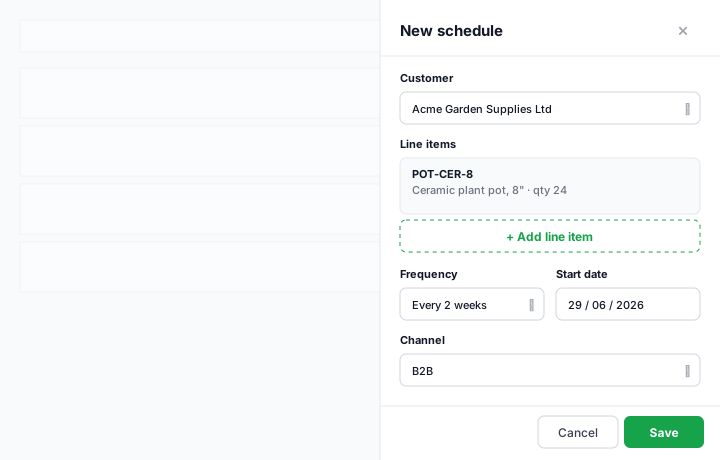
Click "New schedule"
Top-right of the dashboard. The schedule builder opens as a panel.
-
Pick a customer
Start typing a customer's name or email. ARO searches your Linnworks customer database in real time. If the customer doesn't exist yet, click Add new customer and fill in their details — they'll be saved to Linnworks too.
-
Add line items
Add one row per SKU. Start typing a SKU code or product title — ARO searches your Linnworks stock items. For each line:
- Quantity
- Price per unit (auto-fills from Linnworks; override if needed)
- Optional notes (e.g. "always send the gift wrap variant")
-
Set the frequency
Choose one of:
- Daily — every N days
- Weekly — every N weeks on a specific weekday (e.g. every Monday)
- Monthly — every N months on a specific date (e.g. 15th of the month)
- Custom — every N days, where N is anything from 1 to 365
-
Set the start and end
Pick a start date. Optionally set:
- End date — the schedule stops automatically on this date
- Number of occurrences — the schedule stops automatically after N orders
- Run forever — no end (default)
-
Channel and shipping
Pick the channel/source these orders should be tagged with (so they appear correctly in your Linnworks reports). Pick the default shipping method.
-
Save the schedule
Click Save schedule. The schedule is now live and ARO will create the first order on the start date you set.
To create an order right now (e.g. for testing), click Run now on the schedule's row in the dashboard.
Verifying it worked: Switch back to Linnworks Open Orders and search for the customer's name or the order date. The new order will appear there, ready for processing through your normal workflow.
6. Managing schedules
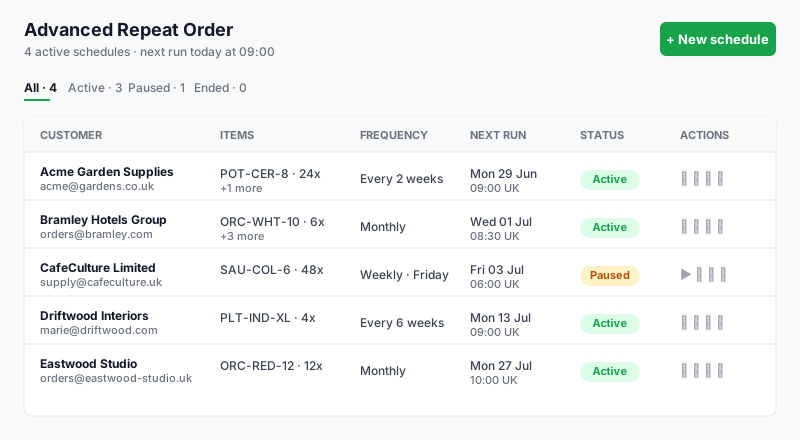
The dashboard shows all your schedules with columns for:
- Customer
- SKUs / line items
- Frequency
- Next run date
- Total orders created
- Status (Active, Paused, Ended, Error)
- Actions (Edit / Pause / Resume / Run now / Delete)
Edit
Click Edit on any row. You can change any field — customer, line items, frequency, channel, etc. Changes apply to future orders only; previously-created orders are not affected.
Pause & resume
Click Pause to temporarily stop a schedule without deleting it. The schedule will not fire until you click Resume. Useful for customer holidays, payment-on-hold scenarios, or seasonal pauses.
Run now
Force the schedule to create an order immediately. The schedule's next run date is not affected — this is an additional one-off order.
Delete
Permanently removes the schedule. Orders already created remain in Linnworks — only the schedule itself is removed.
7. Stock handling
ARO is designed to play nicely with Linnworks' own stock management. By default:
- When a scheduled order is created, stock is allocated in Linnworks exactly as if a manual order had been placed.
- If stock is insufficient at the moment the schedule fires, ARO will still create the order but flag it as back-ordered [VERIFY: behaviour configurable per schedule].
- If you've configured ARO to skip on out-of-stock, the order is not created and you receive an email alert instead.
Behaviour you can configure (per schedule):
- Always create — even if stock is zero. Order is created and back-ordered. (Default.)
- Skip on insufficient stock — order is not created; merchant is emailed.
- Substitute on out-of-stock — auto-swap to a configured alternative SKU [VERIFY availability].
8. Email notifications
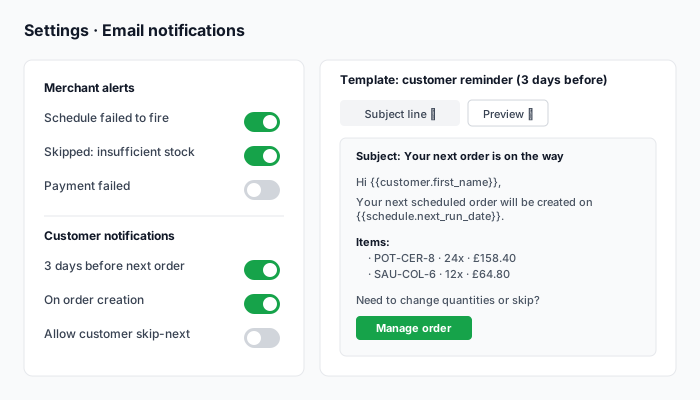
ARO can send transactional emails via Resend (our email provider).
Merchant alerts
You'll receive an email when:
- A schedule fails to fire (e.g. invalid SKU, customer no longer in Linnworks).
- A schedule skips an occurrence due to insufficient stock (if configured).
- A scheduled order's payment fails (when payments are linked).
Customer notifications
Optionally, ARO can email the end customer:
- 3 days before the next scheduled order fires (so they can adjust quantities or skip).
- On creation of the order, with a summary.
Customer email templates are editable in the app settings.
9. Pricing & plans
All plans start with a 14-day free trial. No card details required to start the trial.
| Plan | Monthly | Annual (saves 2 mo) | Includes |
|---|---|---|---|
| Free trial | £0 ($0) | — | All Pro features, capped at 10 active schedules, 14 days |
| Starter | £19 ($24) | £190 ($240) | Up to 50 active schedules · email support · all frequencies |
| Pro | £49 ($62) | £490 ($620) | Unlimited schedules · priority email support · custom intervals · customer email notifications |
| Scale | £149 ($188) | £1,490 ($1,880) | Pro + multi-warehouse logic · Slack support channel · 4hr response SLA · custom integrations on request |
Billing. Payments are handled by Stripe. We do not see or store your card details. You can upgrade, downgrade, or cancel at any time from the Billing tab in the app.
Refunds. 30-day money-back guarantee — if ARO isn't right for you within the first 30 days of paid use, we'll refund you in full.
VAT. Prices are exclusive of VAT. UK customers are charged 20% VAT; EU B2B customers with a valid VAT number are reverse-charged.
10. Troubleshooting
The app shows a blank screen
This typically means Linnworks didn't pass the session token to the iframe. Close the tab and reopen the app from the Linnworks menu. If it persists, log out of Linnworks, log back in, and reopen the app.
A schedule didn't fire
Open the schedule's row and check the History tab for the error reason. Most common causes:
- SKU was deleted or renamed in Linnworks since the schedule was created — edit the schedule and pick the new SKU.
- Customer record was deleted — edit the schedule and pick a different customer.
- Linnworks API was briefly unavailable — ARO automatically retries up to 3 times over 15 minutes before flagging an error.
An order was created with the wrong customer address
ARO uses the customer's default shipping address in Linnworks at the moment of order creation. If you'd updated the address in Linnworks recently, the new address is used. To override per-schedule, edit the schedule and tick Use schedule-specific address.
Duplicate orders were created
This should never happen — ARO's scheduler is idempotent and tracks each occurrence by a unique key. If you see duplicates, please contact support with the schedule ID and we'll investigate immediately.
Stock allocation looks wrong
ARO does not modify stock directly — it simply creates the order. All stock allocation is handled by Linnworks itself using your existing rules. Check your Linnworks stock allocation settings.
11. Data & privacy
What we store
We store the minimum necessary to operate the service:
- Your Linnworks account ID (so we can route scheduled orders to the right account).
- Schedule definitions you create (customer reference, SKUs, frequency, etc.).
- A history log of which orders were created from which schedule.
- Your subscription / billing record (managed by Stripe).
What we don't store
- We do not persist Linnworks session tokens. Tokens are passed by Linnworks on each iframe load and held only in memory during the request.
- We do not store payment card details. All card handling is via Stripe — we never see card numbers.
- We do not sell, share, or aggregate customer data with third parties.
Where data is stored
All schedule data is stored in Cloudflare KV and D1, with EU data residency. Encryption at rest and in transit is provided by Cloudflare.
GDPR
We are GDPR-compliant. You have the right to:
- Access the data we hold about you (request via privacy@mcp-g.com).
- Have your data deleted (within 30 days of an uninstall, or immediately on request).
- Export your schedules as CSV at any time from the dashboard.
Our full Data Processing Addendum is available on request.
12. Uninstalling
- From Linnworks: Settings → App Store → My Apps → Advanced Repeat Order → Uninstall.
- Your Linnworks session token for ARO is immediately revoked. No further scheduled orders will be created.
- Within 30 days, all schedule data and history is permanently deleted from our systems.
- To request immediate deletion before the 30-day window, email privacy@mcp-g.com from your registered account email.
Before you uninstall: if you'd like to keep a record of your schedules, export them as CSV first from the dashboard (Actions → Export all schedules).
13. Support & contact
| Plan | Channel | Response time |
|---|---|---|
| Starter | 1 business day | |
| Pro | Priority email | 4 hours (business hours, UK) |
| Scale | Slack + email | 4 hours (extended) |
General support: support@mcp-g.com
Privacy / GDPR: privacy@mcp-g.com
Status page: status.mcp-g.com [VERIFY: create this if not yet live]
14. FAQ
Does ARO work with multiple Linnworks accounts?
Yes. Install ARO on each Linnworks account individually. Each account has its own schedules, billing, and data — there's no cross-account leakage.
Can I migrate existing repeat orders from another tool?
Yes. We can import schedules in bulk from CSV. Contact support with your data and we'll do the import for you (free of charge for Pro and Scale plans).
What happens if my Linnworks subscription is paused?
ARO can't create orders if Linnworks isn't accepting API calls. Schedules will fail with a clear error and we'll email you. Once Linnworks is back, paused schedules can be resumed — they'll catch up on any missed occurrences only if you choose to.
Can a customer pause their own repeat schedule?
Not directly today — pausing is merchant-controlled. Customer-facing pause/skip links in the notification emails are on our roadmap for [VERIFY release target].
Are there any limits on order size?
No hard limit on number of line items per order. Each scheduled order can contain as many SKUs as Linnworks itself allows (typically hundreds).
Can ARO handle pricing tiers (e.g. trade vs retail)?
ARO uses whichever price you set in the schedule. If you leave the price field blank, it pulls the price from the customer's Linnworks pricing tier at the moment the order is created. So yes — set up the customer's tier in Linnworks and ARO respects it.
What about VAT / sales tax?
ARO creates the order in Linnworks; Linnworks handles all tax calculation based on the customer's address and your tax settings. ARO doesn't override any tax logic.
Can I trial both Starter and Pro features?
The free trial gives you Pro-level access. After 14 days, you choose the plan that fits your usage.
What channels / order sources does ARO support?
Any channel/source configured in your Linnworks account. Common values: DIRECT, B2B, custom channel names. You pick per-schedule.
Is there an API?
An API to programmatically create and manage schedules from outside the Linnworks UI is on our roadmap. Today, all schedule management happens in the embedded app. Contact support if you have a specific use case.
15. Changelog
| Version | Date | Changes |
|---|---|---|
| 1.0.0 | 29/06/2026 | Initial public release on Linnworks marketplace. |